Jump to HeaderJump to Main ContentJump to Footer
Michigan State University
College of Education
  • Strategic Plan
  • Resources
  • People Directory
  • Alums
  • Contact
  • Give

College of Education

  • About
    • Mission & History
    • Strategic Plan
    • Points of Distinction
    • Leadership
    • Academic Departments, Centers, Institutes & Offices
    • Faculty and Staff Directory
    • Inclusion & Diversity
    • Outreach Efforts
    • Buildings & Facilities
    • Career Opportunities
    • Ways to Give
    Dean Jerlando Jackson stands in front of a sign that reads Michigan State University.

    Meet Dean Jackson

    Meet Dean Jerlando F. L. Jackson
  • |
  • Academics
    • Majors & Degree-Granting Programs
    • Undergraduate Programs
    • Master's Studies
    • Doctoral Studies
    • Online Studies
    • Graduate Certificates & Specializations
    • Undergraduate Student Support
    • Graduate Student Support
    • Assistantships
    • Scholarships
    • Accreditation
  • |
  • Certifications
    • Become Certified or Add an Endorsement
    • School Psychologist Certification
    • Student Affairs Office
    • MSU Academic Programs Catalog
    • MSU Office of Accreditation, Assessment, Curriculum & Compliance
    Individual bikes on MSU's campus

    Educator Preparation & Accreditation

    Explore our efforts
  • |
  • Research
    • Office of Research Administration
    • Centers & Institutes
    • Student Research Opportunities
    • Research & Award News
    • Faculty Directory
    Aerial view of a driver in a race car

    Cooler, safer race car tech via MSU study

    Read about our research
  • |
  • Outreach
    • Policy
    • K-12 Schools & Districts
    • Urban Areas
    • International Areas
    • Alumni
    • Institute for the Study of Youth Sports
    • Office of Access & Community Engagement
    • Office of International Studies in Education
    • Office of K-12 Outreach
    • All Offices, Centers & Institutes
    oise

    40+ years of the Office of International Studies

    Explore our impact
  • |
  • News & Events
    • News
    • New Educator Magazine
    • Subscribe: ReviewED Newsletter
    • Events Listing
    Ann Austin poses for the camera in front of a bookshelf

    Celebrating: Ann E. Austin

    Austin named Fellow of American Association for the Advancement of Science
College of Education
  • About
  • Academics
  • Certifications
  • Research
  • Outreach
  • News & Events

< About

  • Mission & History
  • Strategic Plan
  • Points of Distinction
  • Leadership
  • Academic Departments, Centers, Institutes & Offices
  • Faculty and Staff Directory
  • Inclusion & Diversity
  • Outreach Efforts
  • Buildings & Facilities
  • Career Opportunities
  • Ways to Give
Dean Jerlando Jackson stands in front of a sign that reads Michigan State University.

Meet Dean Jackson

Meet Dean Jerlando F. L. Jackson

< Academics

  • Majors & Degree-Granting Programs
  • Undergraduate Programs
  • Master's Studies
  • Doctoral Studies
  • Online Studies
  • Graduate Certificates & Specializations
  • Undergraduate Student Support
  • Graduate Student Support
  • Assistantships
  • Scholarships
  • Accreditation

< Certifications

  • Become Certified or Add an Endorsement
  • School Psychologist Certification
  • Student Affairs Office
  • MSU Academic Programs Catalog
  • MSU Office of Accreditation, Assessment, Curriculum & Compliance
Individual bikes on MSU's campus

Educator Preparation & Accreditation

Explore our efforts

< Research

  • Office of Research Administration
  • Centers & Institutes
  • Student Research Opportunities
  • Research & Award News
  • Faculty Directory
Aerial view of a driver in a race car

Cooler, safer race car tech via MSU study

Read about our research

< Outreach

  • Policy
  • K-12 Schools & Districts
  • Urban Areas
  • International Areas
  • Alumni
  • Institute for the Study of Youth Sports
  • Office of Access & Community Engagement
  • Office of International Studies in Education
  • Office of K-12 Outreach
  • All Offices, Centers & Institutes
oise

40+ years of the Office of International Studies

Explore our impact

< News & Events

  • News
  • New Educator Magazine
  • Subscribe: ReviewED Newsletter
  • Events Listing
Ann Austin poses for the camera in front of a bookshelf

Celebrating: Ann E. Austin

Austin named Fellow of American Association for the Advancement of Science
  • Strategic Plan
  • Resources
  • People Directory
  • Alums
  • Contact
  • Give
Education > Resources > Technology Resources >

Office 365 Mail Setup

Office 365 Mail Setup

Access Office 365 Mail on the web

http://spartanmail.msu.edu/

Office 365 Windows Outlook setup

If you already use Outlook for accessing your MSU Mail:

When you open Outlook you will be prompted to enter your MSU password and Outlook will be reconfigured for your Office 365 mail account.

If you are setting Outlook up for the first time:

1. Start Outlook and allow it to do an automatic setup. Enter your name and MSU Email and click next
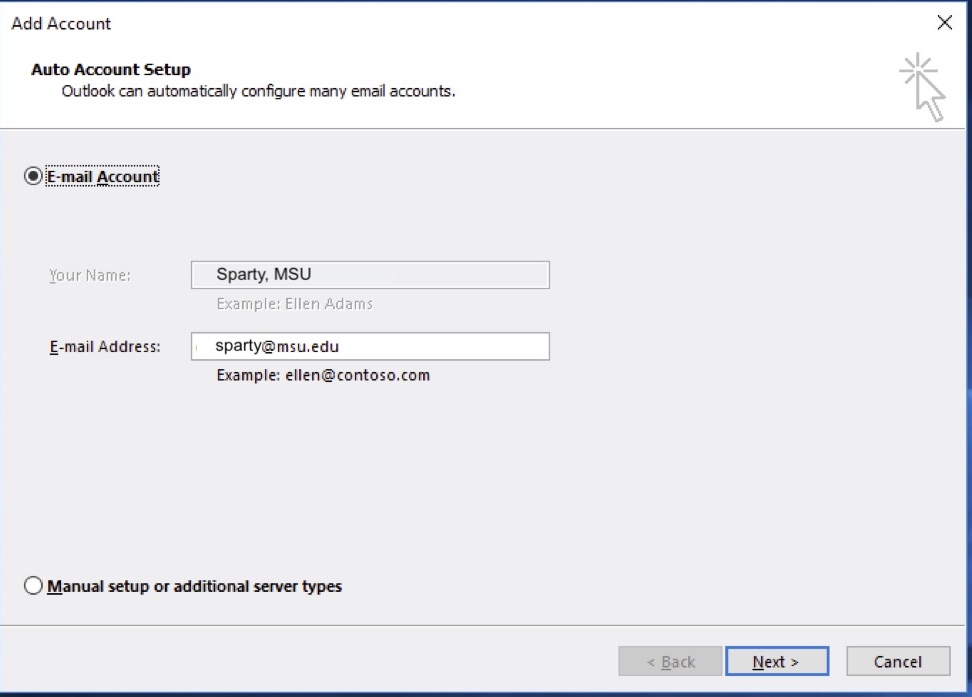
automatic setup


2. Outlook will search for server settings automatically.
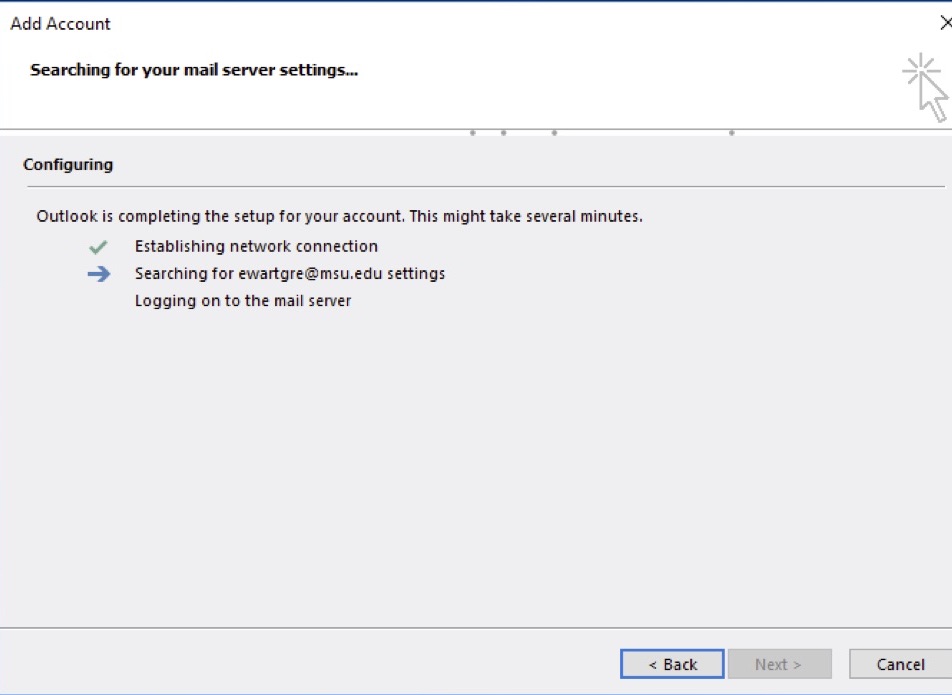
server settings


3. Windows will prompt you for your password. Click OK once your password is entered.
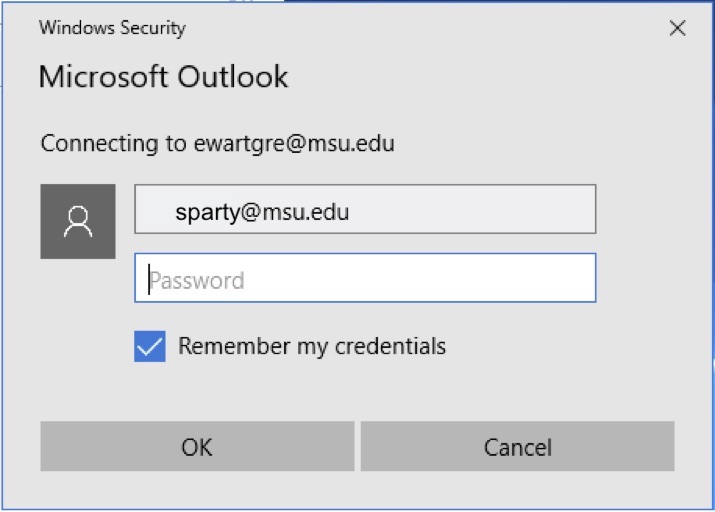
password window screenshot


4. Click OK.

add email screenshot


5. Outlook will continue setting up your mailbox. Click Finish when done.
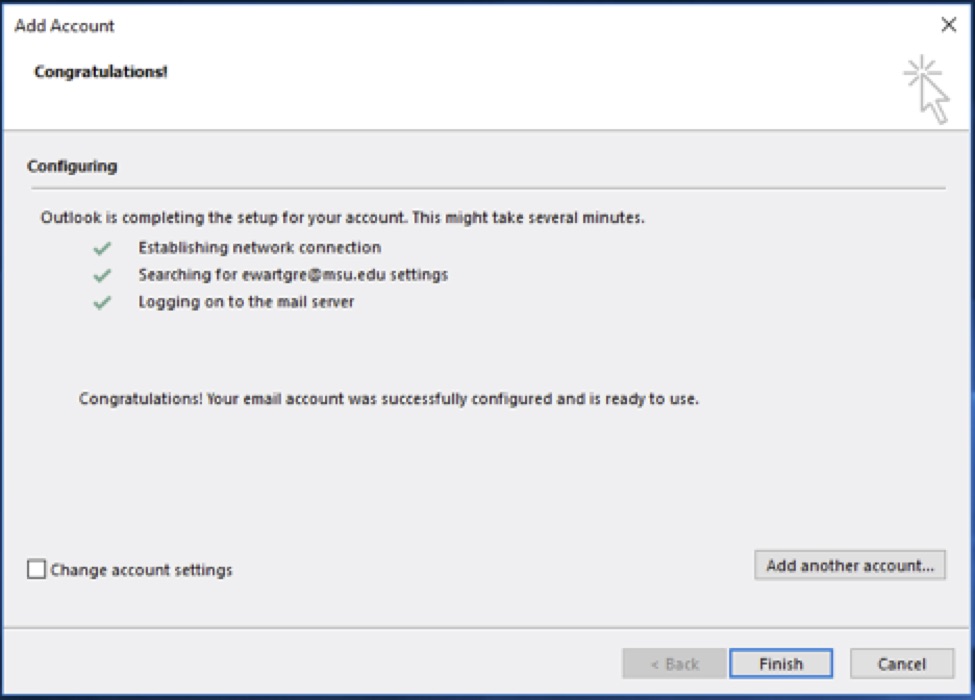
setup finish page screenshot


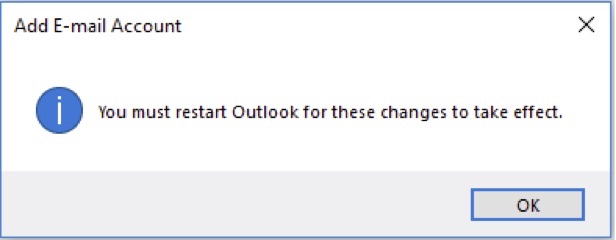
6. Restart Outlook if it does not automatically restart. Outlook is now setup to use Office 365 mail on the PC.

outlook startup


Manual Server Configuration

In some cases the auto-discover process may fail, requiring adjustment of certain fields.

Return to the Auto Account Setup from Step 1, then temporarily change the email address to: NETID@michiganstate.mail.onmicrosoft.com

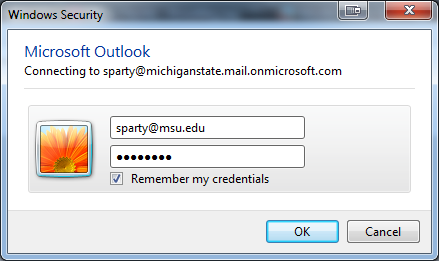
Once Outlook successfully loads the settings using the alternate address, Windows will further prompt for the verification of the account credentials, as shown below.

  • The user name will auto-populate in the form of NETID@michiganstate.mail.onmicrosoft.com; adjust the email address back to the form of NETID@msu.edu.
  • Your password will be your MSU NetId password.
  • Click to select the Remember my credentials checkbox.
 

Office 365 Mac Outlook setup

If you are setting up Outlook for the first time skip to step 5.

If you are already using Outlook for MSU Exchange Mail you will need to remove the old account. If you are unsure if you need to remove your existing MSU account contact Computer Support first.

1. To remove your existing account open Outlook on the Mac and go to the “Tools” menu and select “Accounts”.
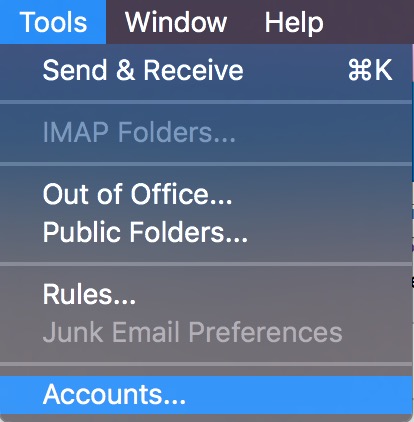
tools menu


2. On the left you should see your MSU account.

MSU account


3. Highlight the account and click on the minus button to delete it.
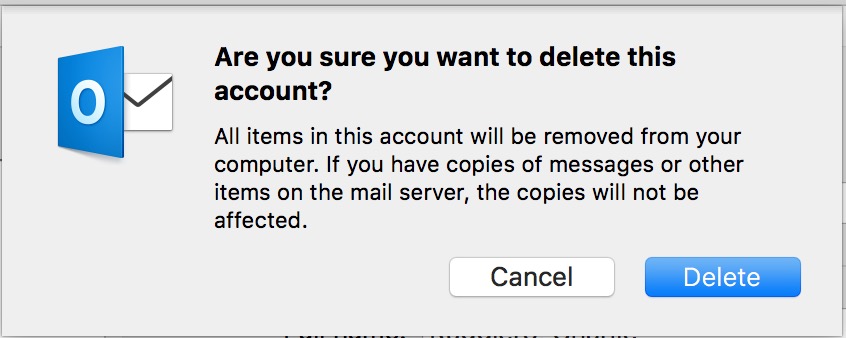
delete account prompt


4. Wait for Outlook to remove the account.

5. Quit Outlook and open it again.

6. You will be prompted to enter your email address. Put in your MSU email address on this screen. Note: If you are not prompted to add an account go to the “Tools” menu and select “Accounts” and press the + button to add a new account.
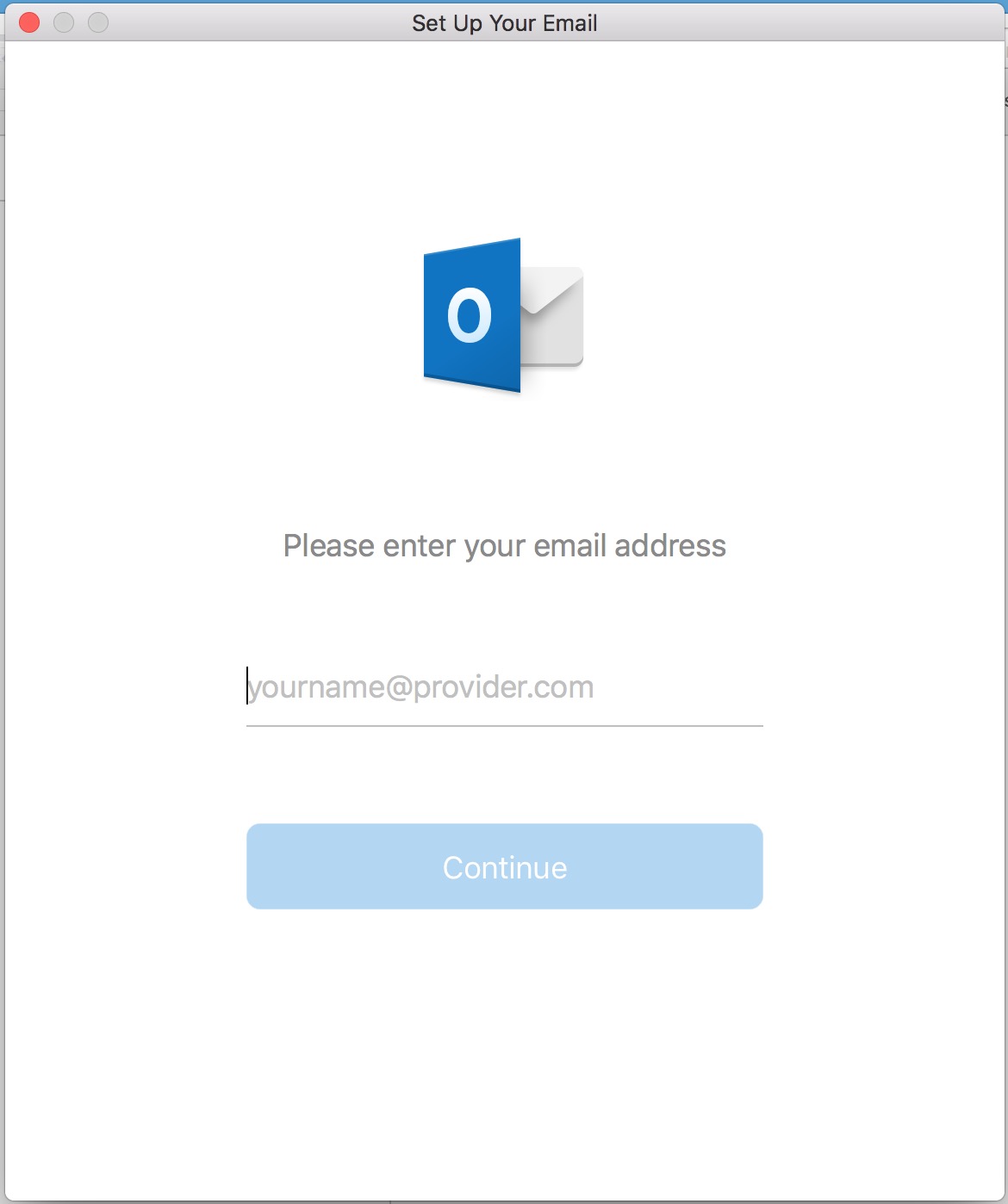
Add account screenshot


7. A screen will pop up for MSU Spartan 365. Enter your MSU NetID password.
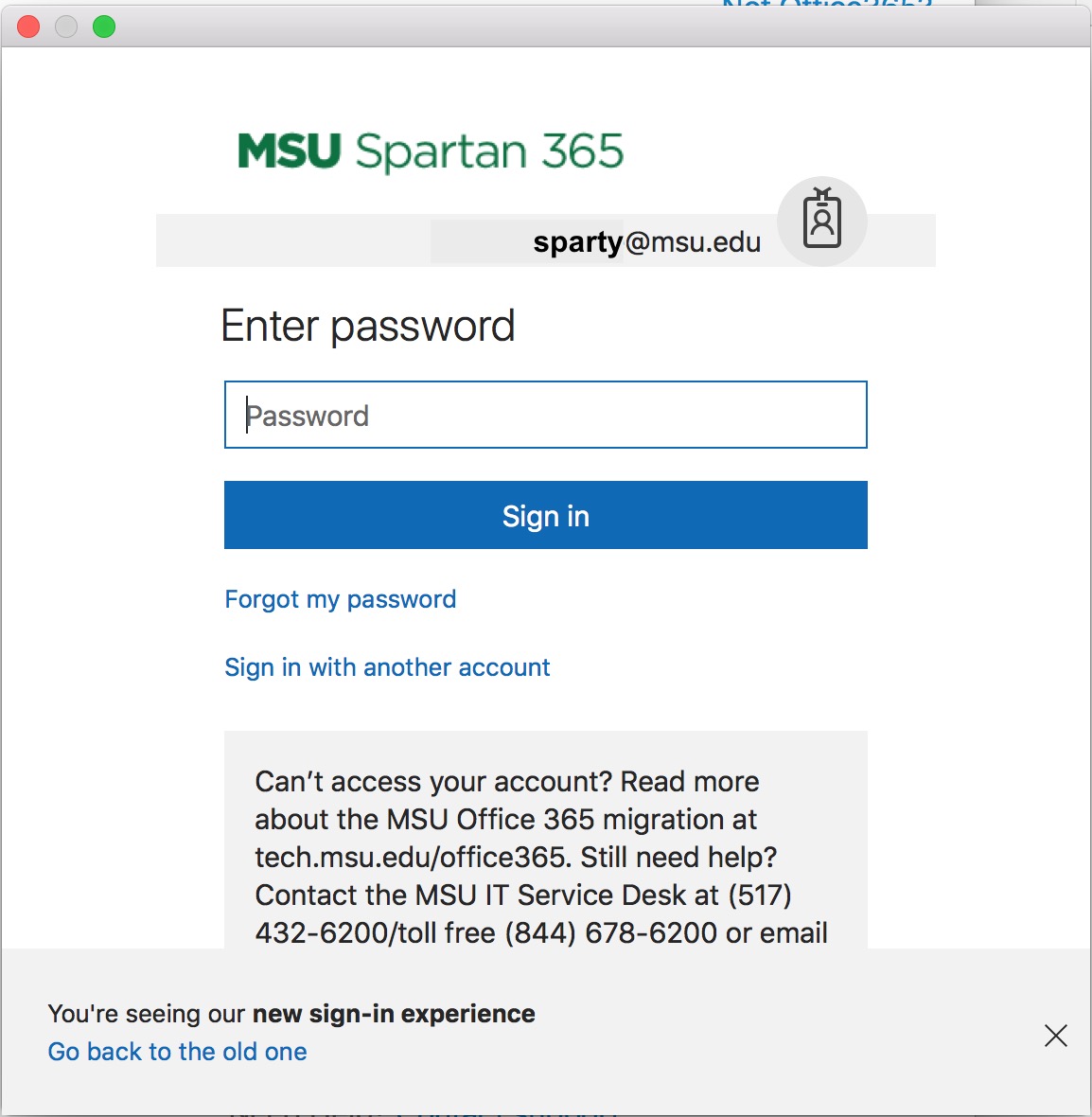
MSU Spartan 365 screenshot


8. Your account will be added. Click “Done”. Outlook is now setup.
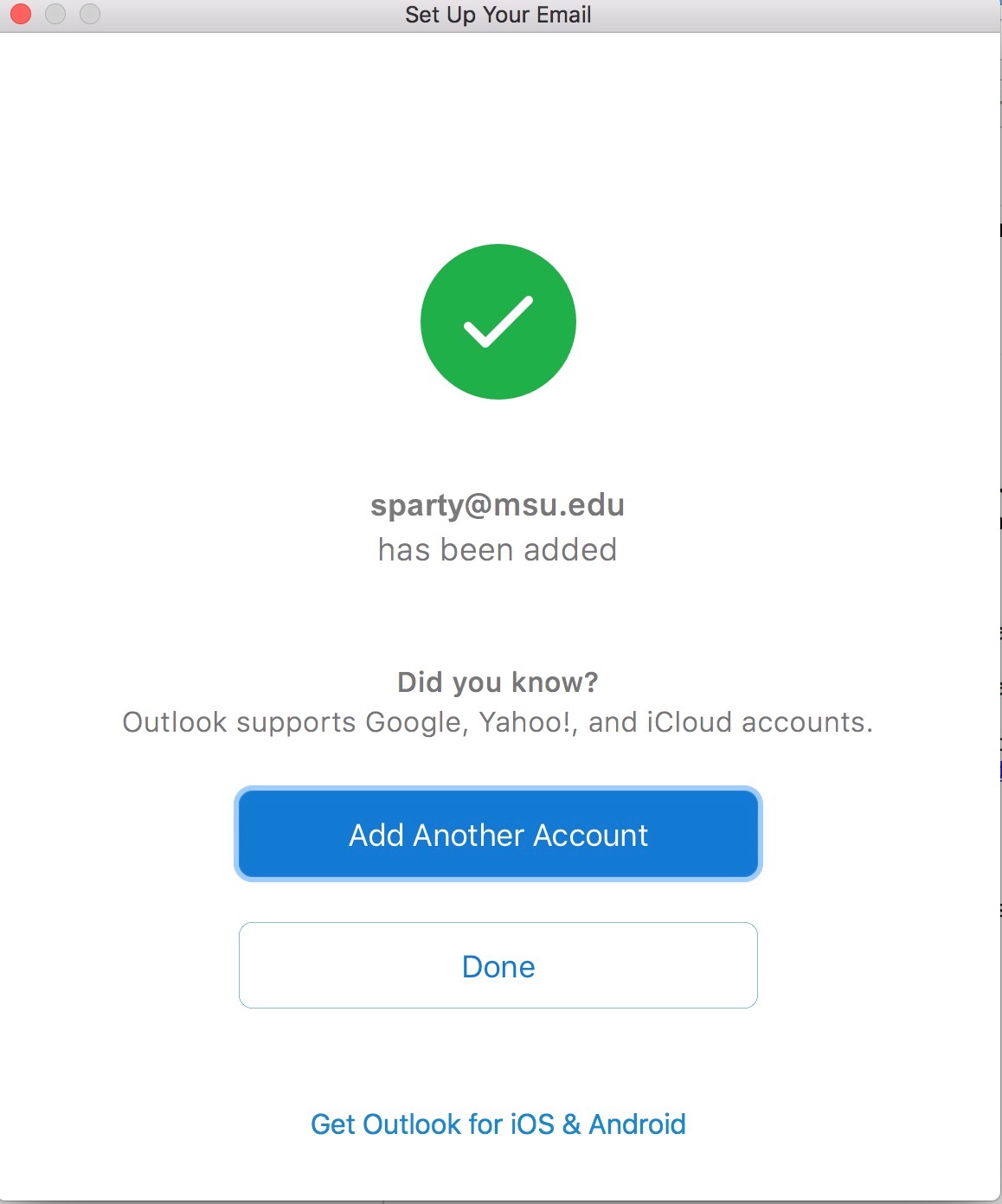
Email setup complete


Office 365 Mac Mail setup

If you are setting up Mac Mail for the first time:

1. Open Mac System Preferences.

Mac Settings


2. Choose “Internet Accounts”.

Internet Accounts


3. Choose “Exchange”.

Exchange


4. Fill out your name, email and password.
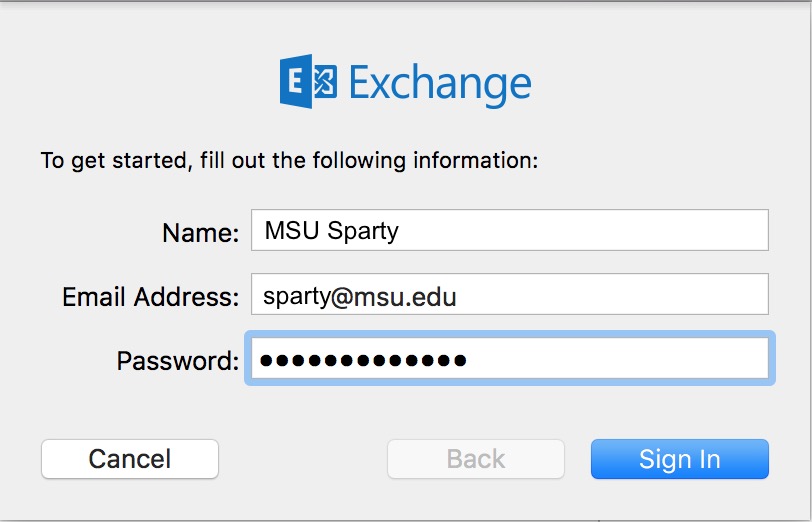
Exchange setup

Note: If you encounter an error trying to connect to the server with your username and password you may have to enter your user account as yournetid@msu.edu in the newly appearing “User Name” field. If it still fails to connect to the server with your username and password you will get a “Next” button bringing you to a place to enter the External and Internal server address. These should both be: outlook.office365.com
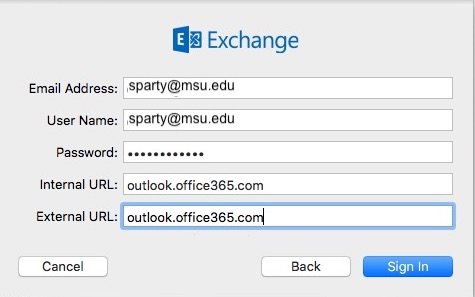
Exchange setup


5. Select what Exchange features you want to use.
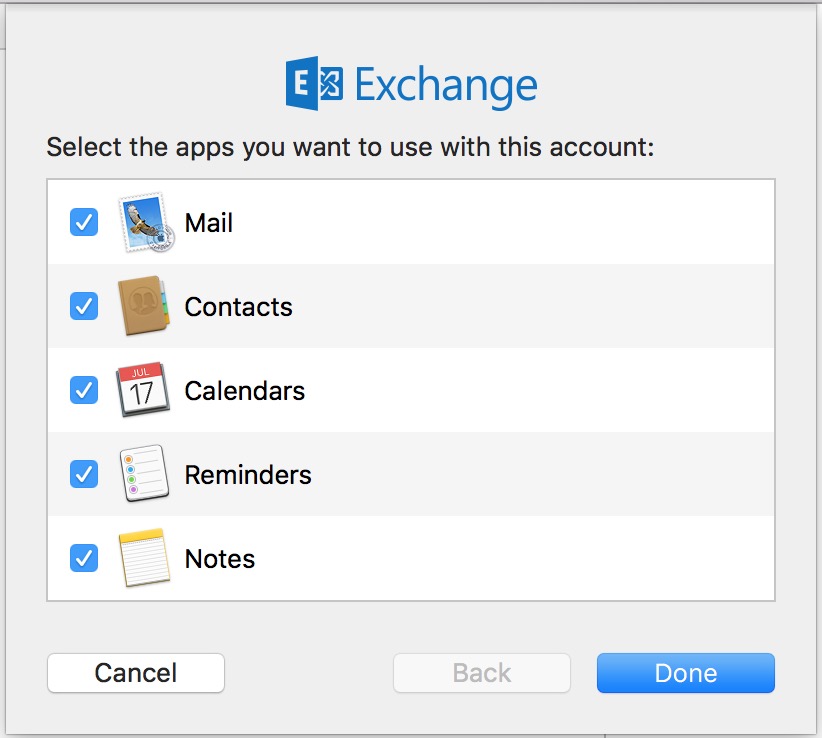
Exchange features


6. Click “Done”. Mac Mail is now setup. Open Apple Mail to access your MSU Email.

If you are using Apple Mail already for MSU Email you should contact Computer Support for advice if you should remove your existing account or keep it for migrating old mail. Exchange users will most likely remove their old Exchange account in Mail and add this new one, but if you are unsure contact us first.

Office 365 iOS Mail Setup

If you are setting up iOS Mail for the first time skip to step 4.

If you are already using Outlook for MSU Exchange Mail you will need to remove the old account.

1. Go to Settings on your iPhone or iPad and select “Accounts and Passwords”. Choose your existing MSU Mail account on the right.
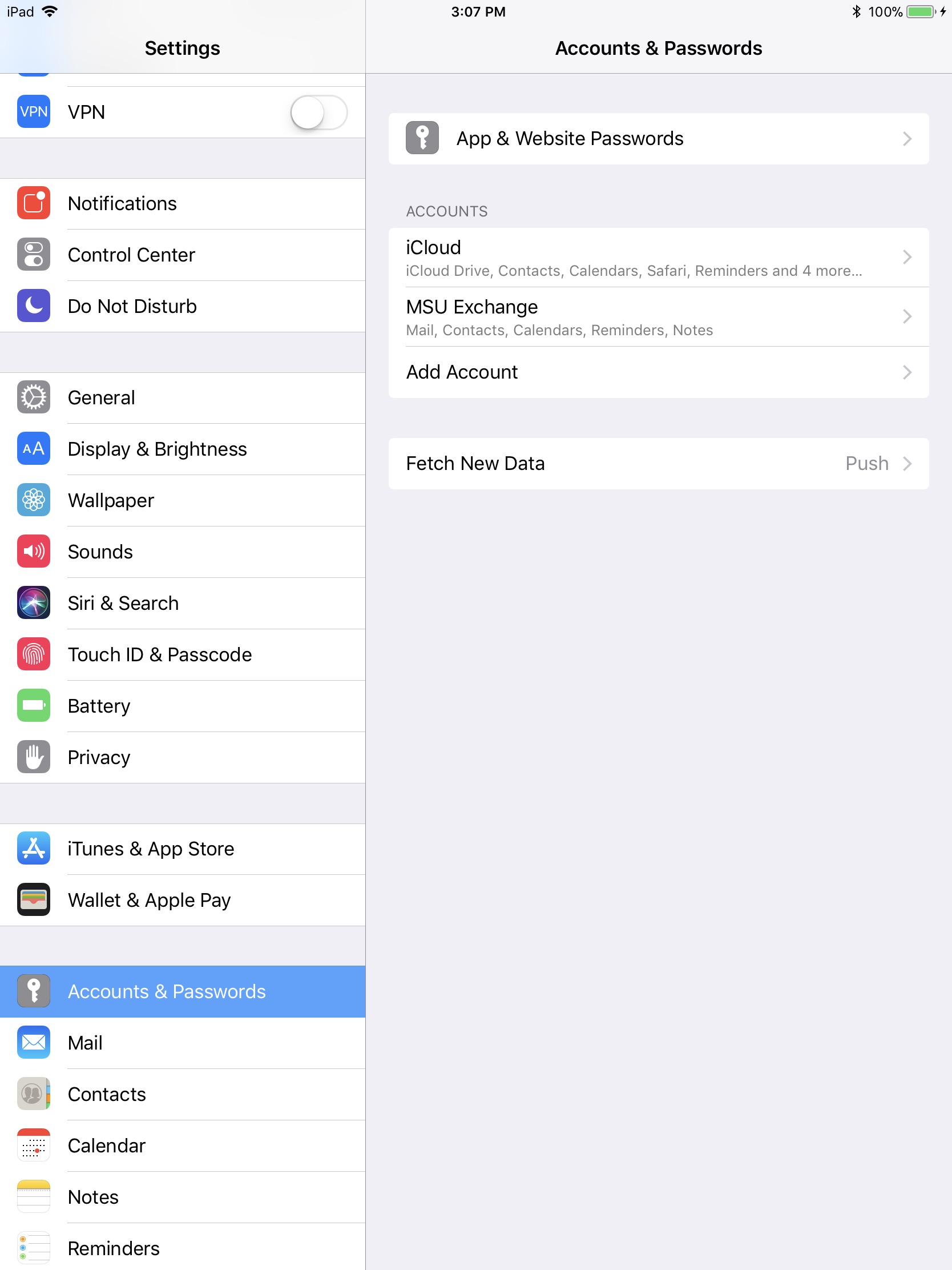
 

2. Tap “Delete Account” at the bottom.
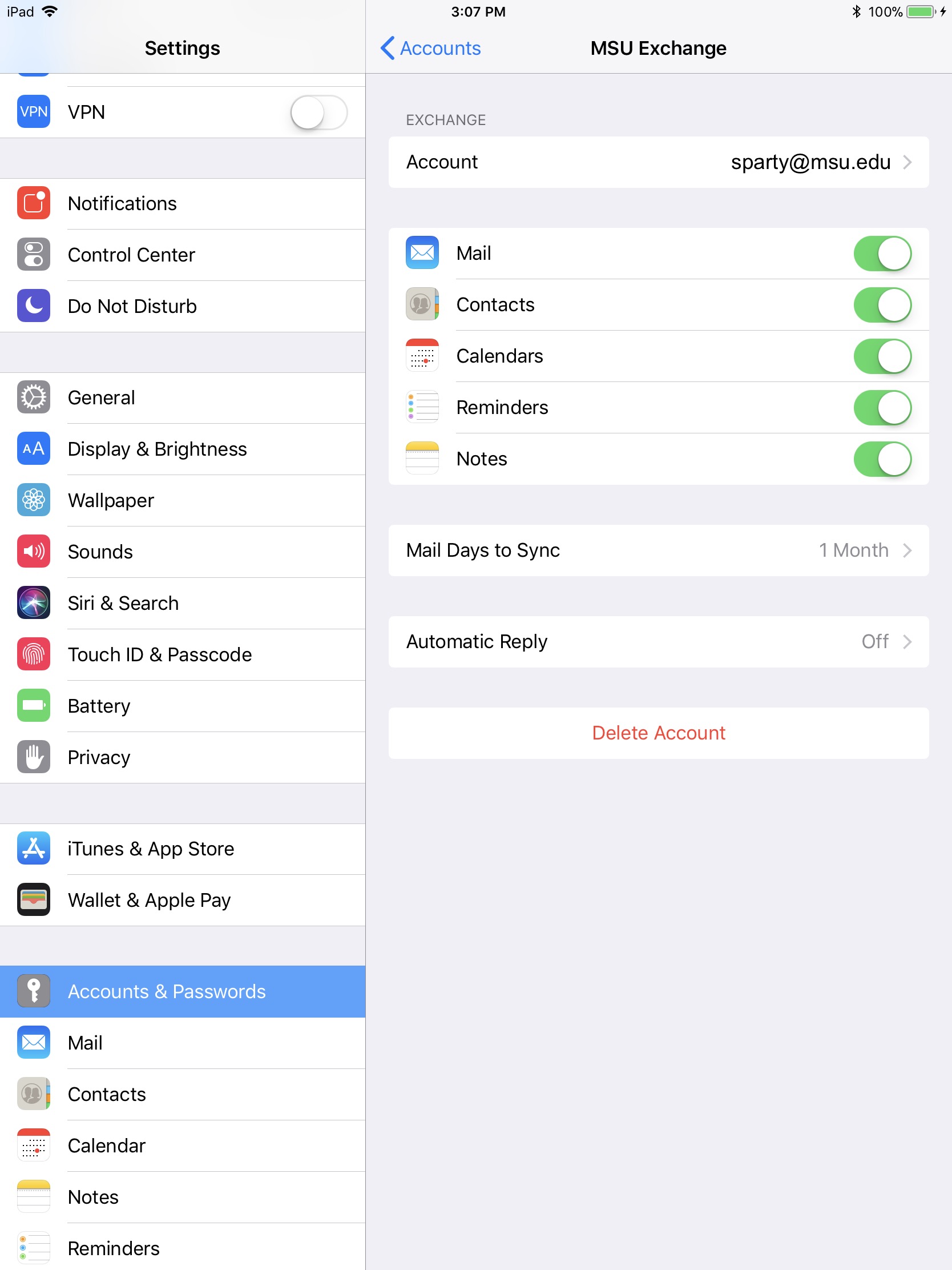
 

3. Confirm that you want to delete this account.
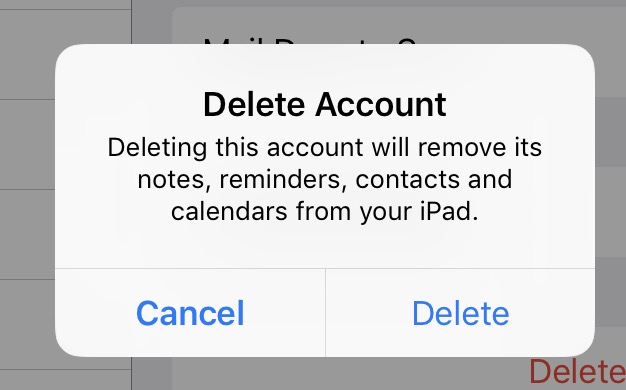
Delete Account


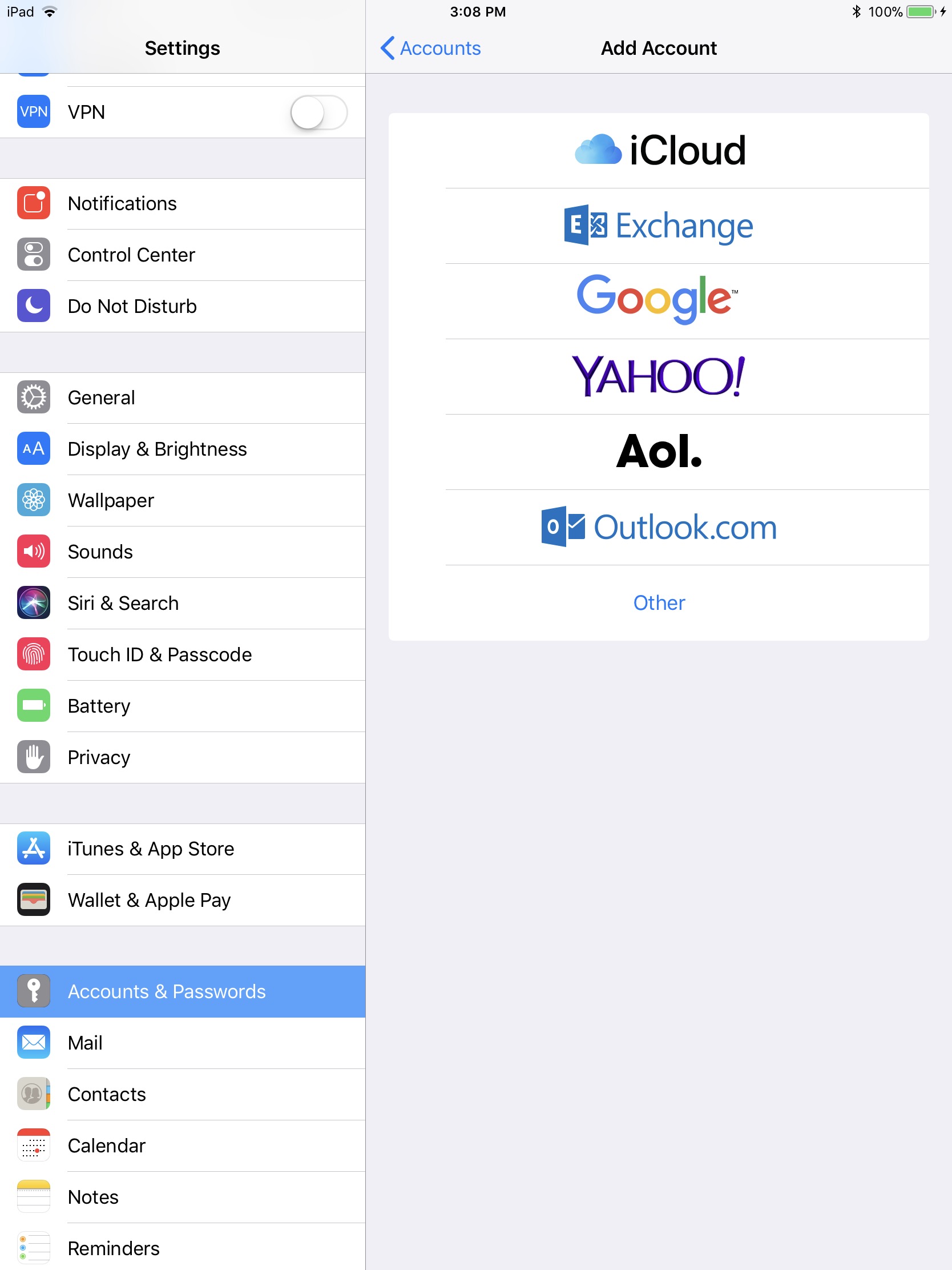
4. Go to Settings on your iPhone or iPad and select “Accounts and Passwords”. Tap “Add Account”
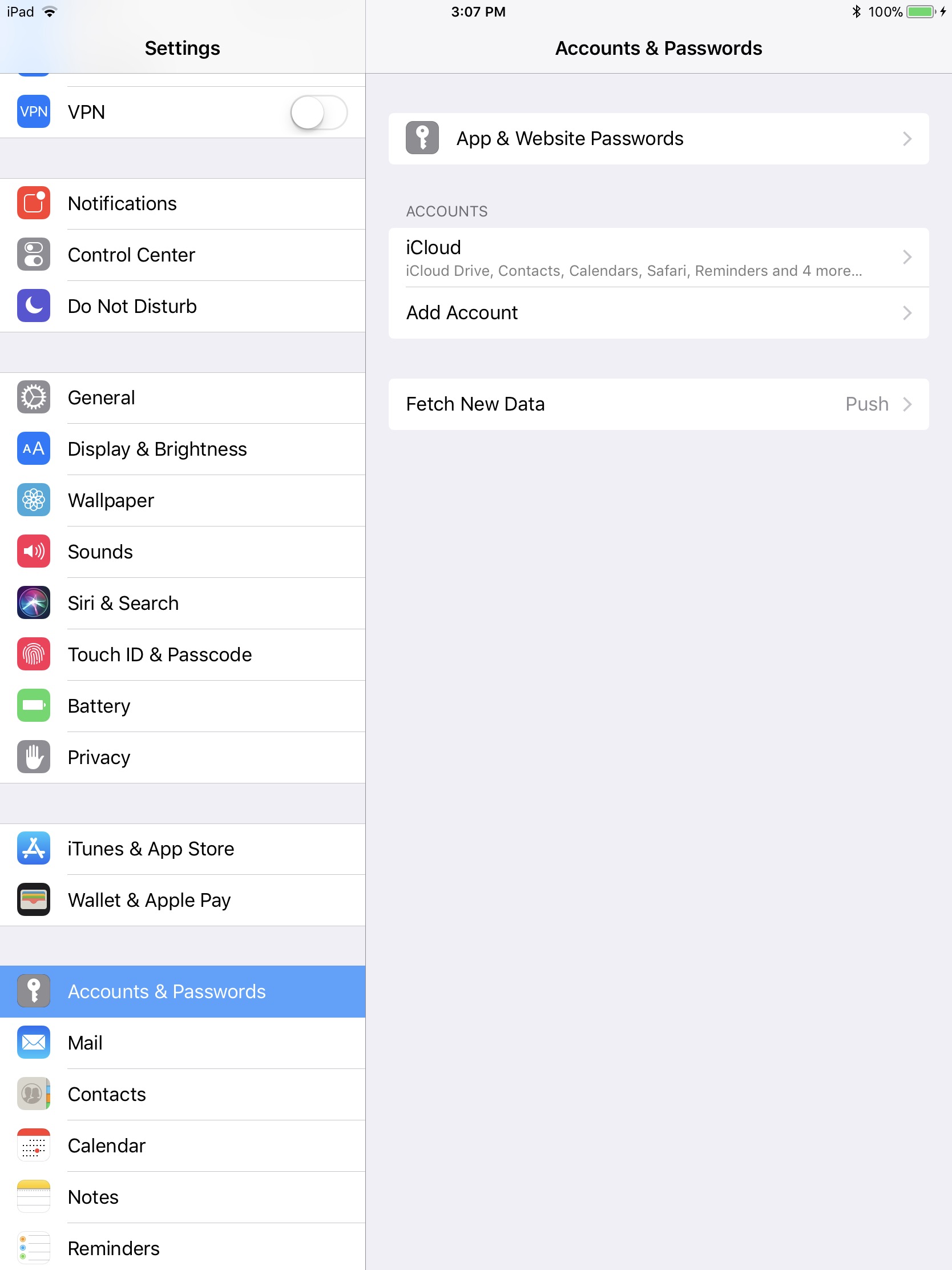
Accounts and Passwords


5. Choose “Exchange”.

Accounts & Passwords


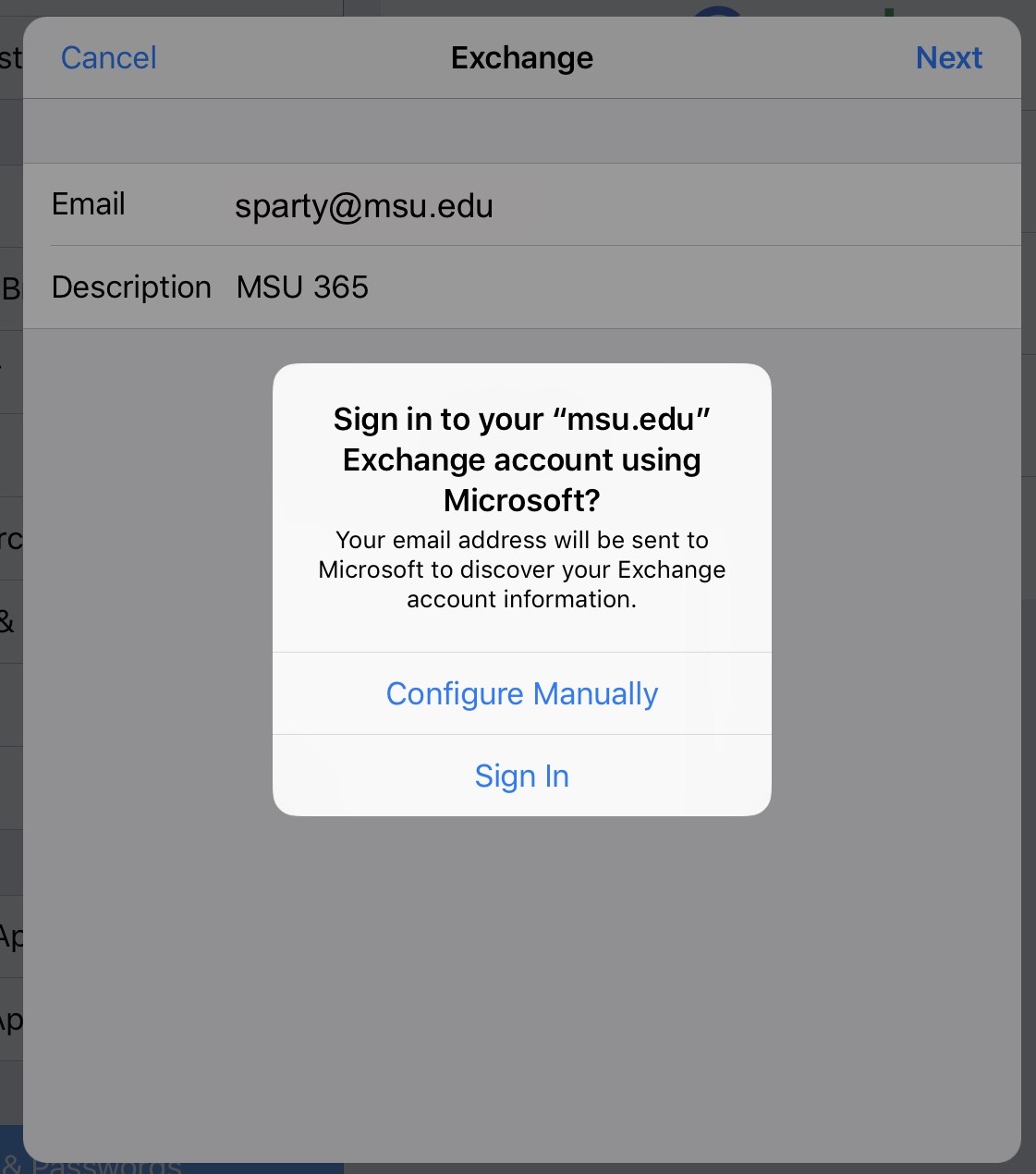
6. Type in your email and name the account.
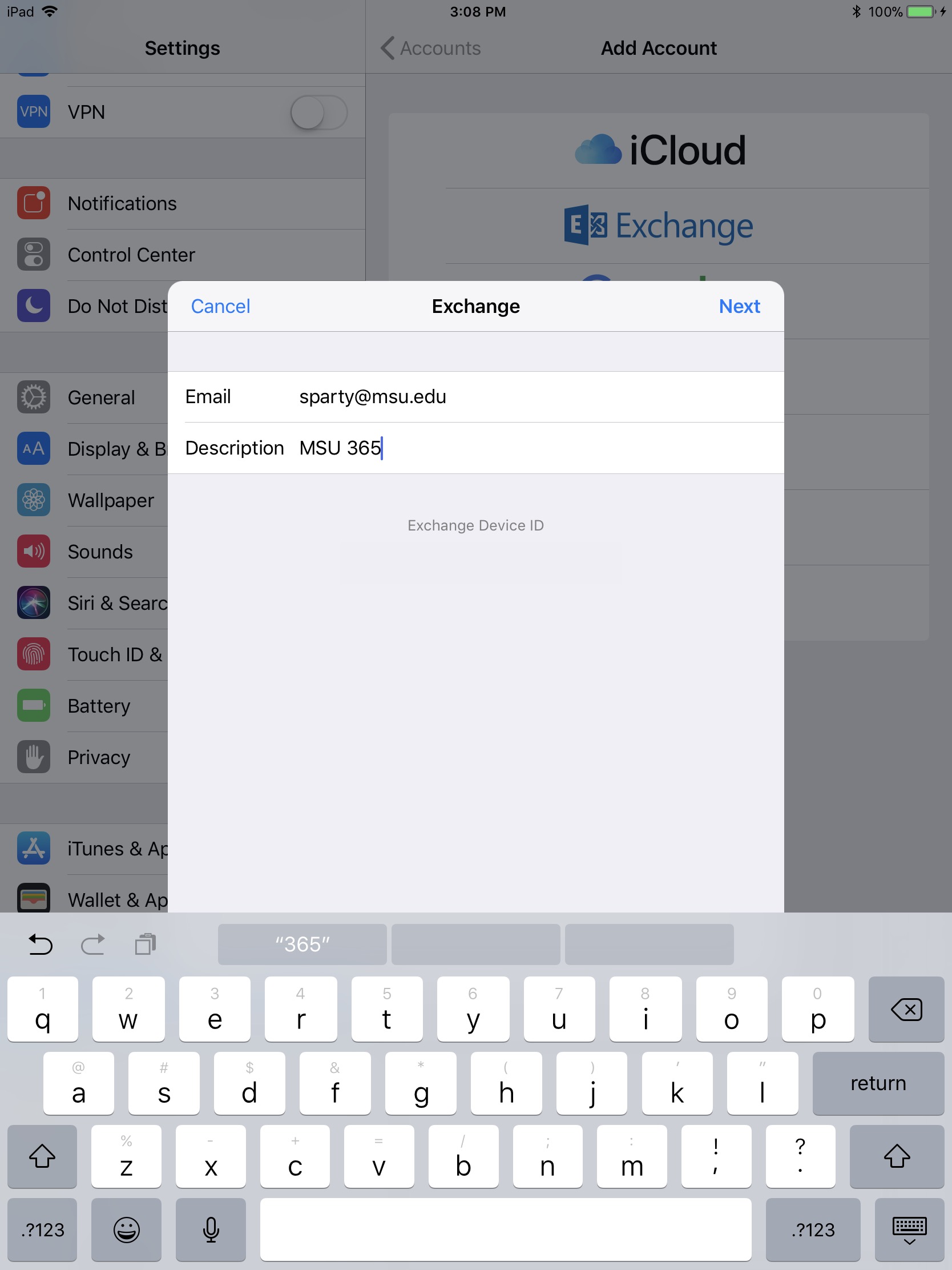
 

7. Tap “Sign in”.
 

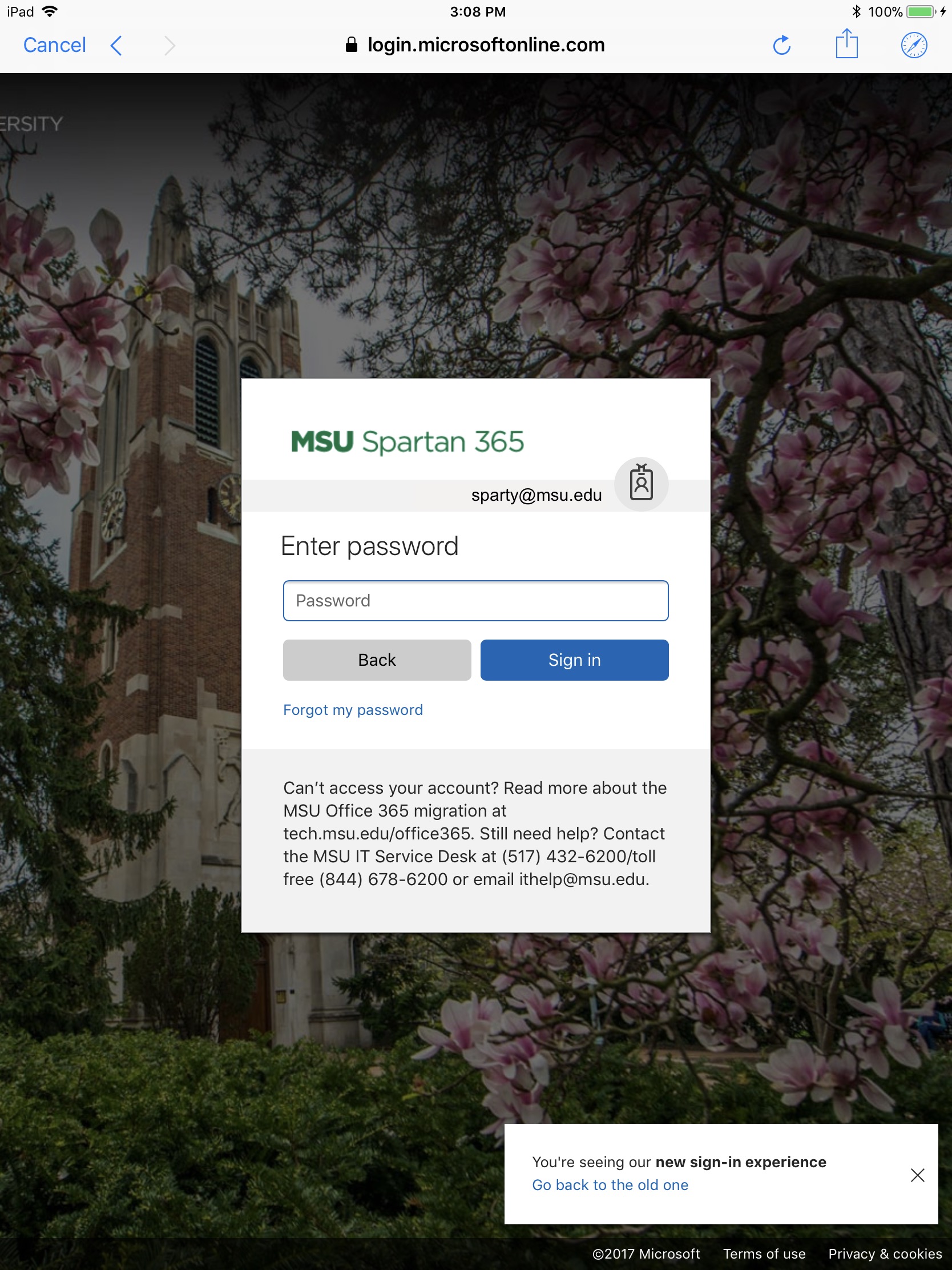
8. A Microsoft sign in page will come up. Sign in with your MSU password.
 

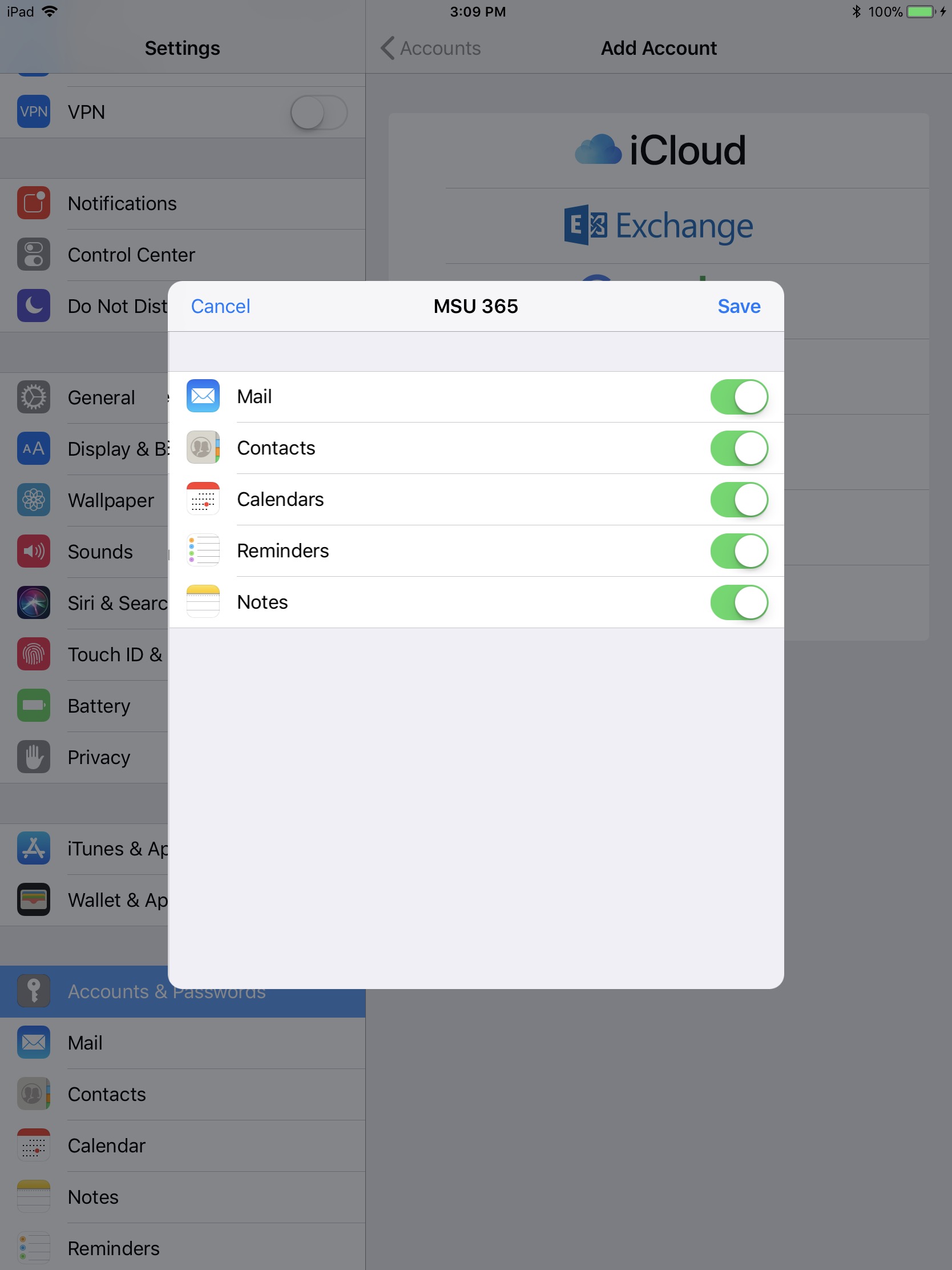
9. Tap “Save”. iOS Mail app is now setup for MSU email.
 

Office 365 Android Mail Setup

Note not all Android devices are the same so some settings may differ on your device.

1. Open the Mail app on your device and add a new account.

2. Select the option for an Exchange server, which may appear as, but is not necessarily limited to, Microsoft Exchange, or Microsoft Exchange ActiveSync.

3. When prompted to add your account, enter your full email address as the user name and your NetID password.

4. Select Next to continue. The auto-discover process should automatically locate the server and move to the Exchange ActiveSync settings window. If this occurs you may skip to step 7.

5. If the auto-configure process fails to locate the server, you will need to enter the information manually. Required settings are provided below.

6. Verify your account settings. Specific settings are provided below:

  • Email Address: netid@msu.edu
  • Server Address: outlook.office365.com
  • Domain: None (Leave blank)
  • Username: netid@msu.edu
  • Password: Your NetID password
  • Secure (SSL) Connection: Enabled

7. Select Next to move to the Exchange ActiveSync settings window.

8. Continue to the completion screen. The account name will likely default to msu.edu, however, you may adjust it as desired. Select Finish, or the equivalent provided by your app, to complete the process. The account will now be ready for use. The setup process will typically deposit you in the Inbox once it completes it.

Michigan State University

Programs

  • Undergraduate Programs
  • Master's Programs
  • Doctoral Programs
  • Online Programs

Academic Departments

  • Counseling, Educational Psychology & Special Education
  • Educational Administration
  • Kinesiology
  • Teacher Education

For Students

  • Graduate Support
  • Undergraduate Support
  • Scholarships
  • Assistantships

For Faculty & Staff

  • Communications
  • Data & Analytics
  • Human Resources
  • Policies, Committees & More
  • Tech Services

Our College

  • Office of the Dean
  • Imagin[ED] 2030 Strategic Plan
  • Mission
  • Directory
  • Centers & Institutes
  • Accolades & Awards
  • Rankings
  • Subscribe to our Newsletter
  • "New Educator" Magazine
  • News
  • Jobs

Contact us

(517) 355-1734

Address

Michigan State University College of Education 620 Farm Lane East Lansing, MI 48824

Releases and Statements

Follow Us

  • Visit our Facebook page
  • Visit our page on X
  • Visit our Instagram page
  • Visit our LinkedIn page
  • Visit our YouTube page

If you're having accessibility issues, please let us know.

Know More: Campus Safety Information and ResourcesTransparency Reporting: Budget & Salary/Compensation
Michigan State University
  • Contact Information|
  • Site Map|
  • Privacy Statement|
  • Site Accessibility|
  • Call MSU: (517) 355-1855|
  • Visit: msu.edu|
  • Notice of Nondiscrimination|

SPARTANS WILL|© Michigan State University|